Evaluate TimeTree when you want a shared-calendar space organized around a particular group. Evaluate Google Calendar when your events already live in Google and its sharing permissions fit the people involved. The most important choice is which system owns an event after it is created; otherwise, a second calendar can create a second version of the truth. TimeTree sharing scope, Google Calendar sharing.
Compare the choices that affect everyday planning
This comparison uses official documentation checked September 19, 2026. Recommendations below are editorial judgments about the documented setup, not a speed or usability ranking from hands-on testing. Start with who needs to participate, then decide where future changes will be made. TimeTree sharing scope, Google Calendar sharing.
| Decision | TimeTree guide | Google Calendar guide |
|---|---|---|
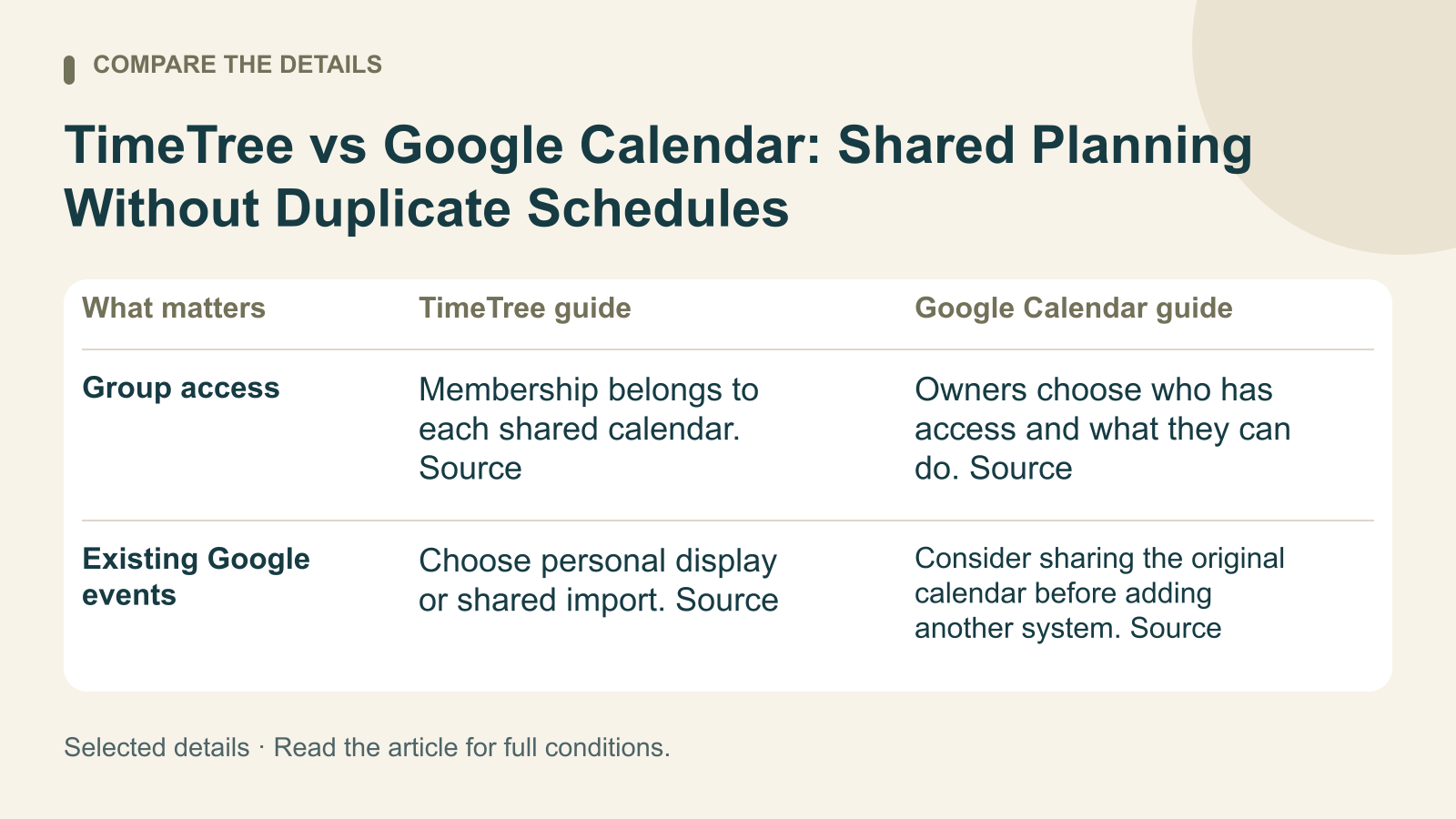
| Group access | Membership belongs to each shared calendar. Source | Owners choose who has access and what they can do. Source |
| Existing Google events | Choose personal display or shared import. Source | Consider sharing the original calendar before adding another system. Source |
| Changed imported events | Shared imports do not update automatically. Source | Keep editing the original Google event when it remains the source. Source |
Choose the audience before moving events
TimeTree separates sharing by calendar membership. That arrangement is worth evaluating when one person coordinates several groups: a household, a volunteer team, and a group of friends may need different calendars. Name each group clearly before adding appointments, then ask participants to confirm that they are looking at the intended one. TimeTree sharing scope.
Google Calendar provides several permission levels, from showing availability without event details to editing events and managing sharing. Work or school administrators can restrict sharing. For a family that already uses Google, check those choices before introducing another app: the existing calendar may already cover the practical need. Google Calendar sharing.
Suppose a relative only needs a sports schedule. Write down whether they should view events, change times, or invite other people before choosing the arrangement. A useful setup begins with the responsibility you want to give that person; a calendar's name alone does not answer those questions. Google Calendar sharing.
Google's Family calendar has its own defaults
Creating a Google family group automatically creates a Family calendar. Google's documentation describes event editing and sharing-management access for people using that calendar, and says non-family members can edit events by default when invited. It also points to ordinary secondary-calendar permissions for changing that access. Check the actual permissions instead of assuming every family-related calendar is view-only or limited to relatives. Google Family calendar.
For a group that includes an occasional caregiver, test the arrangement with one ordinary event before entering the full schedule. Ask that person what they can see and change. Resolve a mismatch while the calendar contains a small amount of information, rather than discovering it after months of appointments have been copied. Google Family calendar.
Personal display and shared import solve different problems
TimeTree can display an external calendar in your personal view, using the phone's native-calendar connection. That view updates automatically but does not share those events with the other members of your TimeTree calendar. It is a way to consult your own combined schedule, not a substitute for inviting people to the original calendar. TimeTree personal display.
Importing external events into a TimeTree shared calendar makes them available to its members, but the imported copies do not update automatically. TimeTree also warns that importing changed details can create duplicates. Before copying a changing sports schedule, decide who will reconcile later updates and remove an obsolete copy. TimeTree shared import.
Imagine a work meeting that moves twice. A personal combined view helps its owner check availability; a separately imported family event creates an additional item to maintain. If nobody will take responsibility for that maintenance, keep the original schedule as the reference and communicate only the relevant family commitment. This is an editorial workflow recommendation based on the documented import distinction. Personal display, Shared import.
TimeTree says its events do not automatically flow back into external calendars and that external-calendar functions are unavailable on its web version. Check the phone setup if that connection matters to your routine. Do not choose a browser-only workflow on the assumption that every mobile integration is present there. TimeTree external-calendar limitations.
A small test that reveals duplicate-calendar problems
For events already created in Google, first try sharing the original calendar with the appropriate permissions. For a new group planning in TimeTree, agree which events belong there and which remain elsewhere. Write that rule in plain language so everyone knows where to correct a mistake. Google sharing permissions, TimeTree import behavior.
Choose one event likely to change. Edit its time, change its location, and cancel it. Check what each participant sees after each change. This is a suggested test, not a claim that we ran it or that either service never delays updates. Begin with a limited set of upcoming events and resolve duplicate entries before importing years of history. TimeTree import behavior.
For urgent changes, agree on a direct communication method as well. Google's Family-calendar help says the default upcoming-event notifications do not include notifications when another family member creates, edits, or deletes an event. A calendar is shared context; an important change still needs an agreed way to reach the people affected. Google Family calendar notifications.
Frequently asked questions
Does TimeTree provide continuous two-way synchronization with Google Calendar?
The documented methods distinguish personal display from shared import, and TimeTree explicitly limits updates back to external calendars. Choose the method for the intended audience and account for its update behavior rather than treating an imported event as a live connection. TimeTree external-calendar methods.
Which should a household already using Google try first?
Try the existing Google sharing arrangement first. Evaluate TimeTree when a separate group-calendar workflow solves a specific problem that justifies maintaining another system. The useful outcome is a schedule everyone understands, not simply another place to enter the same appointment. Google Calendar sharing, TimeTree calendar membership.
What should be decided before importing a schedule?
Name the original source for each event type, decide who makes corrections, and check how a changed event reaches the other calendar. A clear ownership rule prevents two copies from becoming competing instructions. TimeTree shared import.