
When a family location is not updating, first check whether the phone is on and online, then review Location Services, precise/background access, battery-saving settings, and the app itself. "Last seen" generally means the service is showing an older position. "No location found" means it cannot retrieve a current one; that status alone does not reveal why.
The moment is always the same. You open the map, the dot isn't moving, the timestamp says "1 hour ago," and your stomach drops.
Before drawing a conclusion, work through the device and connection checks. A stale location often has an ordinary technical cause, but the exact status language differs by app.
First, decode the message
Family apps show three states that look similar but mean different things:
- "Last seen [time]": the service is displaying the most recent position it received.
- "No location found" or "location unavailable": the service cannot retrieve a current position. The device may be offline or off, Location Services may be disabled, or sharing may have stopped.
- "Sharing paused / off": in apps that use this label, location sharing was disabled in the app. For example, Life360 explicitly displays "Location Sharing Paused" when its in-app toggle is turned off.
Google's current Find Hub troubleshooting guidance names three broad causes when a refresh fails: the device is offline or off, location services are off, or location sharing is off.
Seven checks to make, in order
1. The phone is dead or off
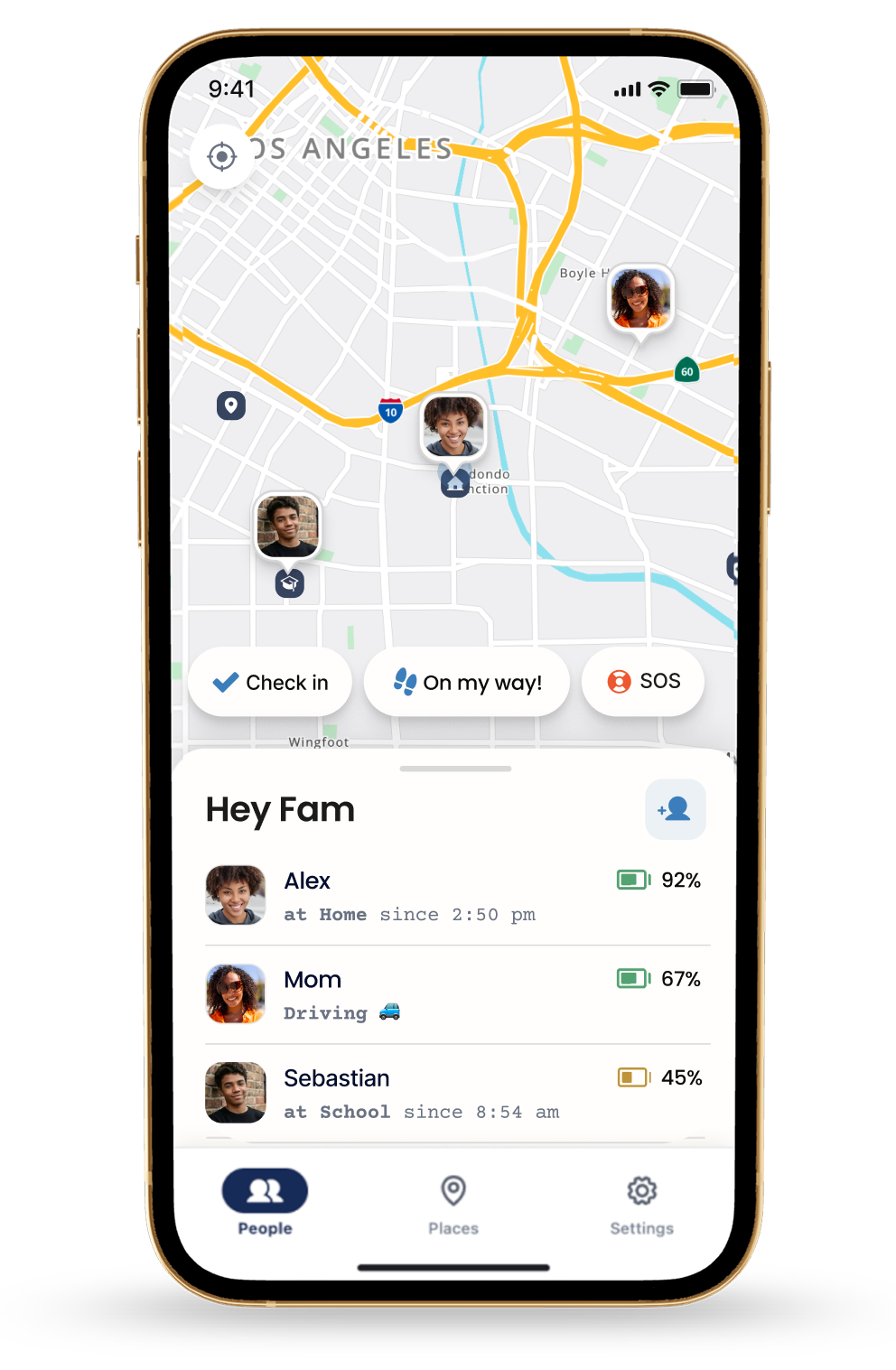
A powered-off phone cannot send a new position. This is why Lighthouse includes low-battery status and alerts: the circle can see a possible battery cause before a location becomes stale.
2. No signal
Parking garages, rural highways, basements. The phone knows where it is but can't send it. The location catches up in a burst when coverage returns. If you've ever watched a dot teleport down a highway, that was it.
3. Low power mode
On iPhone, Low Power Mode reduces or disables some background activity, including Background App Refresh. Android manufacturers also apply battery-saving rules differently. If a location repeatedly becomes stale at low battery, review the device's power settings.
4. Background App Refresh is off (iPhone)
Go to Settings → General → Background App Refresh and review the app's setting. Apple notes that Low Power Mode disables Background App Refresh. See Apple's current battery guidance.
5. Location permission changed
Go to Settings → Privacy & Security → Location Services → the app. Review both the access level requested by that specific app and the Precise Location toggle. Apple explains that permissions differ by app and can be changed at any time in its Location Services guide. Life360, for example, currently instructs iPhone users to select Always and enable Precise Location.
6. The app was force-quit
Reopen the app and let it complete any permission or account prompts. Background behavior after force-quitting varies by operating system and app, so use the app's own support instructions.
7. Battery optimization killed it (Android)
Android can pause background activity or revoke permissions for unused apps. Settings vary by device, so open the app's system settings and review battery/background use and permissions. Google documents the unused-app behavior in Android Help.
The fix list, in order
- Is the phone on and charged?
- Does it have signal where they are?
- Turn off low power mode, or plug in.
- Match Location Services and Precise Location to the app's current requirements.
- Review Background App Refresh on iPhone or battery/background use on Android.
- Open the app once. Don't force-quit it.
For Life360 specifically, compare the phone against its current location-accuracy checklist. If one person's location repeatedly goes stale, document which check restores it instead of assuming one universal cause.
When it's the app's fault
Sometimes everything checks out and the location is still frozen. Every location app, ours included, occasionally has a bad sync or a stuck cache. Update the app, restart the phone, and if one person is chronically stale, sign them out and back in.
If an app is routinely hours behind for your whole family, that's a product problem. Switch products.
Make stale locations boring
Two habits turn this from a recurring panic into a non-event:
- Watch battery, not dots. An app that warns you at 15% answers "why did she disappear" before you ask.
- Agree on what a stale dot means. In your family location-sharing agreement, make it explicit: a stale dot means "check in when you can," nothing more.
And remember the one state that isn't a malfunction: airplane mode freezes the dot too, and it looks exactly like a dead battery.