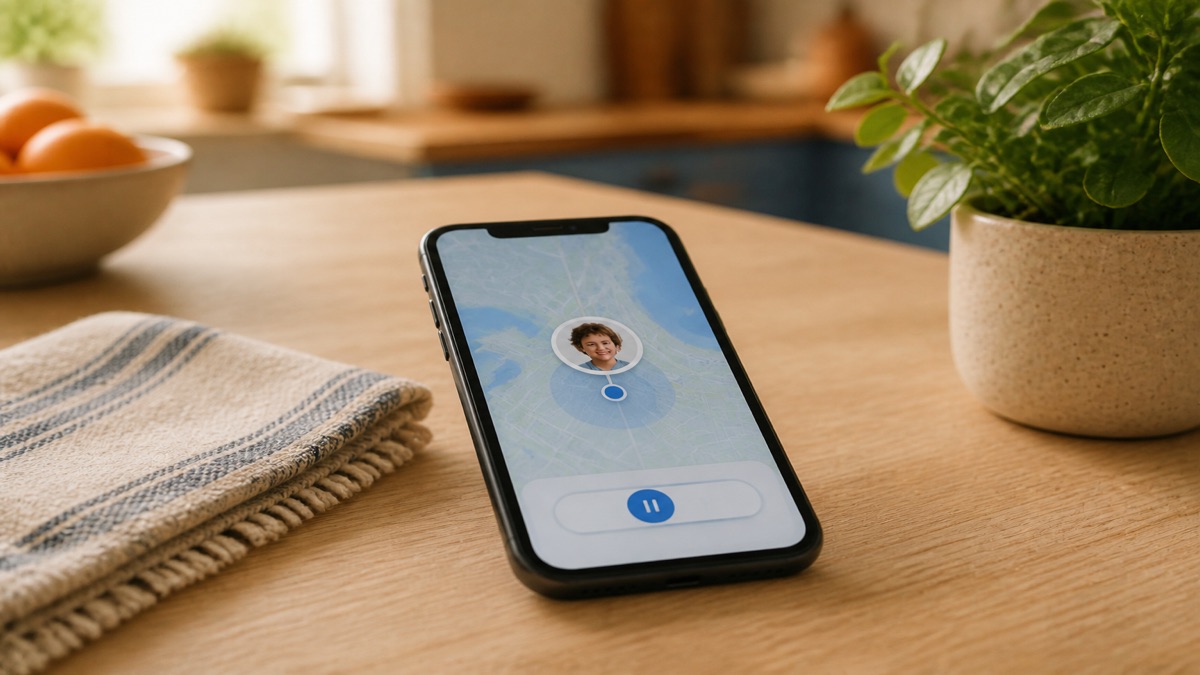
To pause location sharing in Life360: Settings, then Location Sharing, then toggle it off for the circle you choose. Your family sees "Location Sharing Paused" immediately. In Apple's Find My: the People tab, pick a person, then "Stop Sharing My Location" (Apple says that person is not notified, although they can discover that sharing has stopped). There is no dependable invisible method, so the low-drama move is to say something first.
Most guides on this topic are teens asking "can I do it without my parents knowing" and listicles pretending the answer is yes. Here's the honest version: every method leaves a visible trace. What the methods actually differ on is which trace. Once you know that, you can pick the one that causes the least drama, which is usually the announced one.
What your family actually sees, method by method
| What you do | What the map shows them |
|---|---|
| Life360 in-app pause | "Location Sharing Paused" under your name |
| Life360 Bubble | Your approximate area, plus a note that you're in a Bubble |
| Phone location permission off | Updates stop; the exact status varies by app |
| Airplane mode without data | Updates stop; the last position may remain visible |
| Find My "Stop Sharing" | Sharing ends; Apple says the person is not notified |
| Phone dead or off | Updates stop; the last position may remain visible |
Notice there's no row that says "nothing happens." A frozen dot is itself a signal, and families read frozen dots badly: dead battery, dead zone, or hiding something? They can't tell. That ambiguity is where the drama comes from.
Pausing in Life360
The official pause:
- Open Life360 and tap Settings (gear icon).
- Tap Location Sharing.
- Toggle it off for the circle you want.
Three things to know. It's per circle, so repeat it if you're in several. The status change is instant and visible to everyone. And per Life360's own support docs, two features punch through the pause: sending an SOS shares your location in every circle, and tapping Check In shares your spot once, on your terms.
A more explicit option for some situations: a Bubble. A Bubble shares only your general area (a radius you pick, up to 25 miles) for a set number of hours, then expires on its own. Your circle sees that you're in a Bubble, but not where exactly you are. Life360 says safety and messaging features stay on, but a Circle member can burst the Bubble if concerned, revealing the exact location. Read the current Life360 Bubbles documentation before relying on it as a privacy boundary.
Pausing in Find My (iPhone)
For one person:
- Open Find My and tap the People tab.
- Tap the person's name.
- Scroll down, tap Stop Sharing My Location.
For everyone at once: tap the Me tab and toggle off Share My Location.
Find My is quieter about it than Life360: nobody gets a notification when you stop, they can still discover that your location is no longer available. Apple also notes that stopping sharing with someone in one Apple app stops sharing with that person across Find My, Maps, and Messages. See Apple's current location-sharing instructions.
If stopping access is related to your personal safety, use Apple's Safety Check instead of following a generic family-sharing guide. Apple includes it in the same support page so you can quickly review or stop information sharing.
The actual answer to "without drama"
The technical methods above are the easy half. The drama never comes from the pause. It comes from the discovery of an unannounced pause.
So announce it. A text that says "pausing my location for a few hours, all good" costs five seconds and beats every stealth option, because the alternative is your family staring at a frozen dot deciding whether to worry. In our house rules, that's a formal clause: pauses are allowed, announced, and not interrogated. We published the whole parent-teen location-sharing agreement if you want the template, including the part where parents get pauses too.
One more honest note: if someone in your family pauses constantly, that's not a settings problem. That's feedback about how the location app is being used. The fix is an app built around arrivals instead of surveillance, or a conversation, and usually both.